
Integration with SmartWeb
How to connect NetRadar.io price monitoring to your SmartWeb webshop with an API client – including multi-site, currencies and customer groups.
With the built-in integration for SmartWeb, your products are automatically retrieved and updated in your NetRadar.io price monitoring. The integration also allows your prices to be updated automatically around the clock via the rules you set up in repricing.
The integration supports multi-site setups as well as multiple currencies and languages. You can also decide which customer groups in your SmartWeb should be repriced automatically – so you avoid changes for, for example, B2B customers with special price agreements.
Activate the SmartWeb integration
- Log in to NetRadar.io price monitoring at https://app.netradar.io/.
-
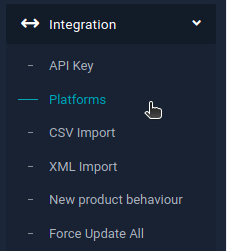
Select the menu item 'Integration' and then 'Platforms'.
-
Click the 'Enable SmartWeb' button.
Set up the integration with the API
-
Enter your domain name, including
http://orhttps://– for examplehttps://minshop.dk.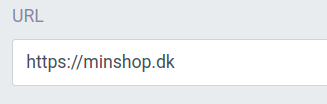
-
Open a new browser window and log in to the administration of your SmartWeb webshop.
-
Go to 'Settings' and select 'API'.

-
Click 'Create API client' in the top right corner.
-
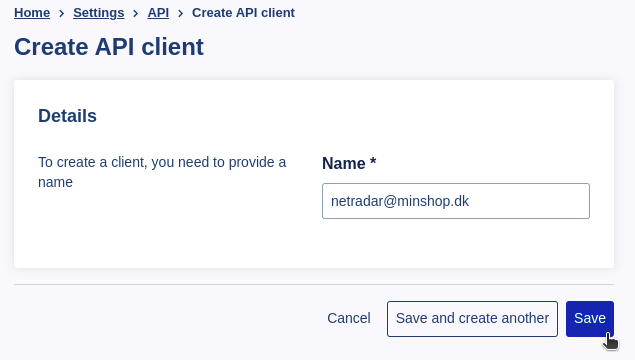
Enter a name for the new API client:
-
Don't forget to click 'Save'.
Connect SmartWeb to NetRadar.io
-
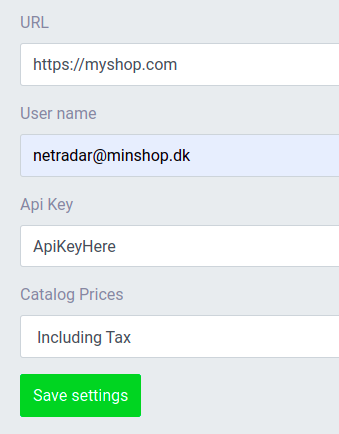
Go back to the setup in NetRadar.io and enter the e-mail address as the user name and the password as the API key.
-
Choose whether your prices in SmartWeb are stated with or without VAT ('Catalog Prices'). You can always change this setting later if you are in doubt.
- Click the green 'Save settings' button.
-
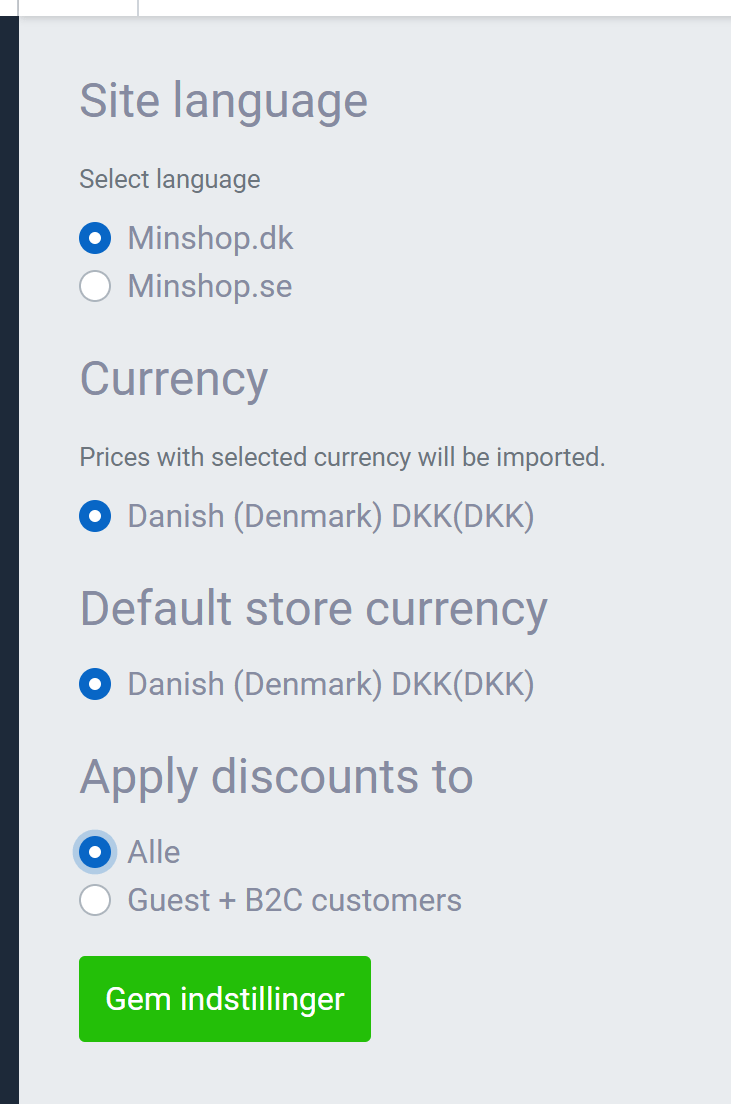
If the API user works and a connection is established, you will see this page, where you choose the shop, language and currency (if you have more than one):
-
At the bottom, under 'Apply discounts to', choose whether prices changed by NetRadar.io should apply to everyone ('Alle') or only to 'Guest + B2C customers'. This depends on whether you have prices for specific customer groups in SmartWeb, and how these should relate to prices set according to the market. If you are in doubt, choose 'Guest + B2C customers'.
- When you have made your choice, click the green save button again. The integration is now set up.
Your products are now being imported for price monitoring. How long it takes depends on the number of products – on average about 5 minutes per 1,000 products.
Need help? If you run into an error or need help setting up the integration, contact us at support@netradar.io or call +45 77 34 34 34.