
Integration with Magento 1.7, 1.8 and 1.9
How to connect NetRadar.io price monitoring to your Magento 1.7, 1.8 or 1.9 webshop with a SOAP/XML-RPC API user.
Here you can read how to integrate NetRadar.io price monitoring with your Magento 1.7, 1.8 or 1.9 webshop.
Note: If you have Magento 2, use this guide instead.
Activate the Magento integration
- Log in to NetRadar.io price monitoring at https://app.netradar.io/.
-
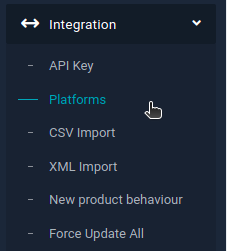
Select the menu item 'Integration' and then 'Platforms'.
-
Click the 'Enable Magento 1.7+' button.
-
Enter your domain name, including
http://orhttps://– for examplehttps://minshop.dk.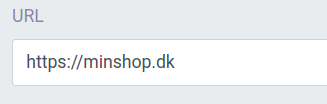
Create an API role and user in Magento
Open a new browser window and log in to the administration of your Magento webshop. You now need to create a user and an associated role with full access. If you already have a user you want to use, skip to the section 'Connect Magento to NetRadar.io' below.
-
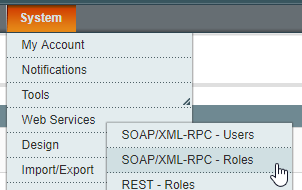
Go to the menu item 'System' → 'Web Services' → 'SOAP/XML-RPC - Roles'.
-
Click 'Add New Role' at the top right.
-
Give the role a name – for example
netradar.io. -
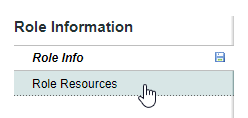
Click 'Role Resources' on the far left.
-
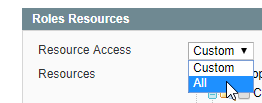
Select 'All' next to 'Resource Access'.
-
Click 'Save Role' at the top right.

-
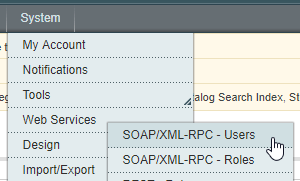
Go to the menu item 'System' → 'Web Services' → 'SOAP/XML-RPC - Users'.
-
Click 'Add New User' at the top right.
-
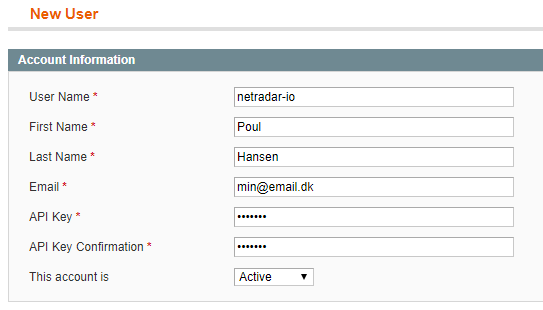
Fill out the form. If you already have a user with your e-mail address, you can simply enter one that does not exist.
-
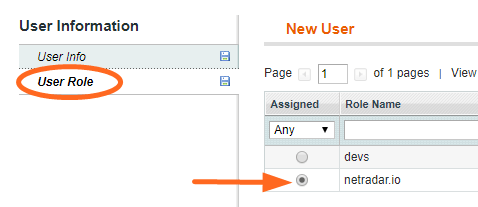
Click 'User Role' on the far left and select the role you created above.
-
Click 'Save User' at the top right.
Connect Magento to NetRadar.io
- Go back to the integration setup page in NetRadar.io and enter your user information.
-
The value you entered as 'API Key' for your user in Magento must be entered in the 'Access Token' field in NetRadar.io.
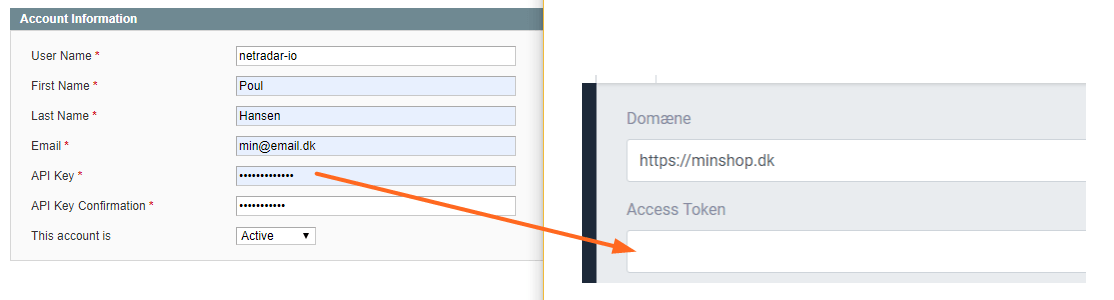
-
Then enter the names of your fields for barcode (also called GTIN/EAN) and brand. You can find these names in Magento under 'Catalog' → 'Attributes' → 'Manage Attributes'.
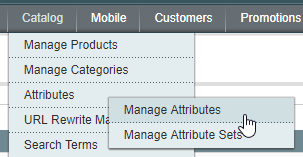
-
If your barcode field is called
gtinand your brand field is calledbrand, it will look like this: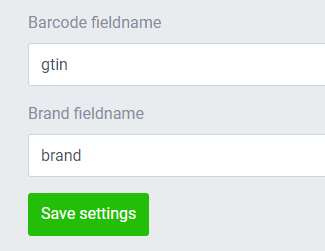
-
Click the green 'Save settings' button.
Your products are now being imported for price monitoring. How long it takes depends on the number of products – on average about 5 minutes per 1,000 products.
Need help? If you run into an error or need help setting up the integration, contact us at support@netradar.io or call +45 77 34 34 34.