
Import products from a CSV file
Use a CSV file (comma-separated values) to import products – or competitors – directly into NetRadar.io price monitoring.
With a CSV file (comma-separated values) you can import products directly into NetRadar.io price monitoring.
Import a CSV file
-
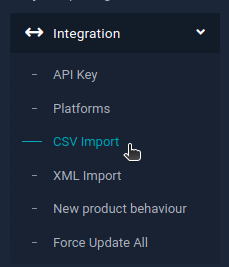
Log in to price monitoring and go to 'Integration' → 'CSV Import'.
-
Have a comma-separated file ready. It must contain at least Product no. (ID/SKU), Title and Price. Other possible fields are: Cost price, Previous price, GTIN/Barcode, Brand, Category and In stock.
- Click 'Select file' and find the file on your computer.
- Select what your file contains – products or competitors.
-
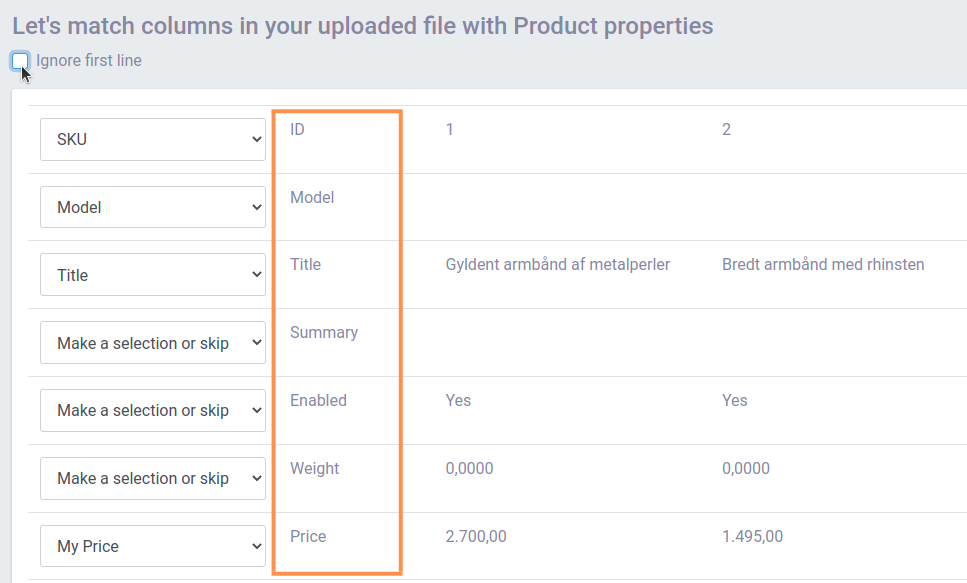
Click 'Upload'. You will now see an overview of the contents of your file, where you select the correct column headings.
If the first line of your file contains headings, tick 'Ignore first line' so it is skipped.
-
Select the correct columns – see the example below:
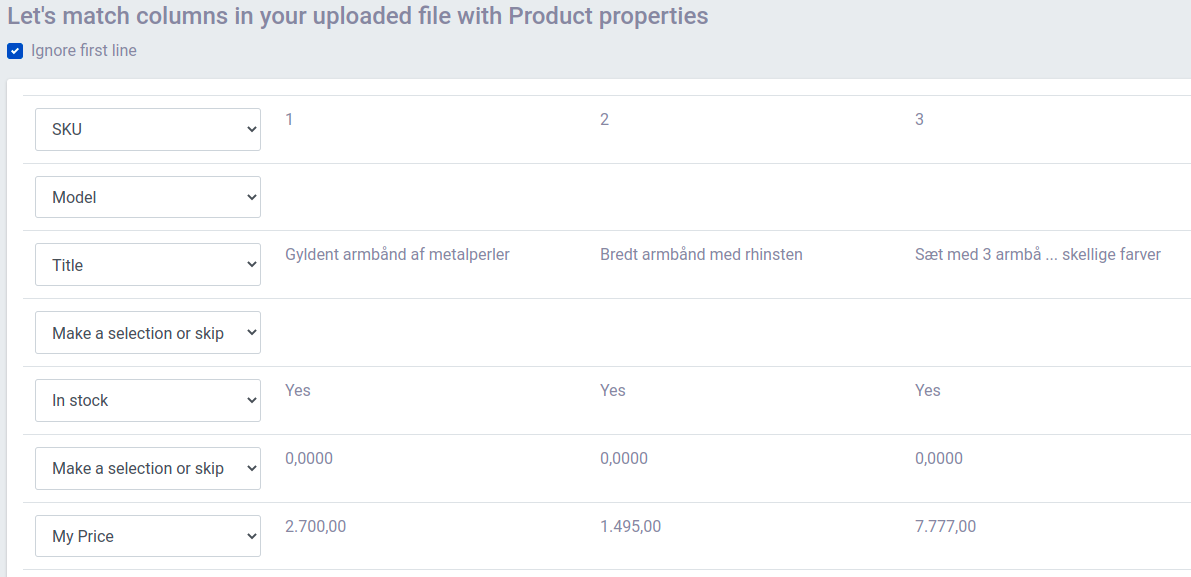
Remember that Product no. (ID/SKU), Title and Price are required. If your file has other columns you don't want to use, just skip them ('Make a selection or skip'). In the example above, SKU, Title, Price and In stock have been selected, and two columns have been skipped.
-
When you have selected the correct columns, click 'Import xx lines' to start the import.

Use the import to update products
You can also use the import to update products that are already in the system. For example, if you want to add barcodes to your products for price monitoring, import a file containing Product no. (ID/SKU), Title, Price and Barcode. This updates the existing products.