
Support
Integration with Woocommerce
Requirements for Integrating with Woocommerce
To integrate with Woocommerce, we utilize Version 3 of the Woocommerce API. Ensure your WordPress is at least version 4.4, and Woocommerce is version 3.5 or higher. You can verify your version in the 'Status' section under 'WooCommerce'.

and then look at these:

Activating the Woocommerce Integration
- Login to Netradar.io price monitoring via https://app.netradar.io/
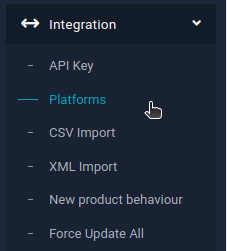
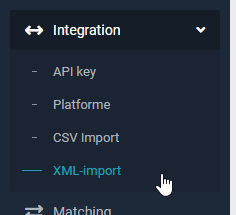
- Select the menu item 'Integration' on the far right and then 'Platforms'
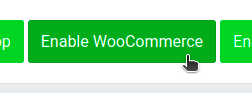
- Click the 'Enable Woocommerce'
Setting Up Integration Using API Keys
- Enter your domain name, including 'http://' or 'https://'. For example, https://minshop.dk.

- In a new browser window, log into your WordPress administration
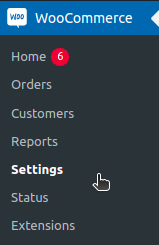
- Go to Woocommerce settings, select the 'Advanced' tab, and then click on 'REST API'
.png)
- You may use an existing API key or create a new one. To create a new key, click 'Add key' and fill out the form. Ensure the permissions are set to 'Read/Write'
- Click the 'Add key' button
.png)
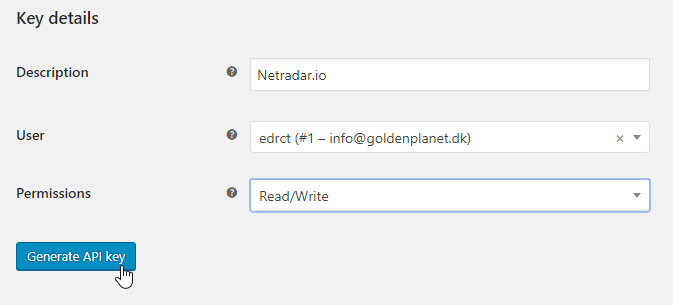
- Fill out the form. Permissions must be 'Read/Write'. Click on the 'Generate API key' button
- Copy 'Consumer Key' and 'Consumer secret' from your Woocommerce into your Netradar.io setup

- Now click on the green 'Save settings' button in Netradar.io
Your integration is now complete. If you encounter any issues or require assistance, contact us at support@netradar.io or call +45 77 34 34 34.
Your products will be read for price monitoring, typically taking about 5 minutes per 1000 products.
Adding Barcode (GTIN/EAN), Brand, and Cost Price Information from Product Feed
Woocommerce does not natively support fields for barcode, brand, and cost price, making them unavailable via API integration. If you have a product feed for platforms like Facebook or Google Shopping, we can integrate this information from there.
Many users have had success with this plugin for managing product feeds: https://woocommerce.com/products/google-product-feed/.
After integrating your WooCommerce as described earlier, and once all products are loaded:
Enter your product feed's web address and specify fields for SKU/ID, GTIN (barcode), brand, and cost price. Leave other fields unselected:

We recommend waiting for about an hour, or until all products are updated with barcode information, before activating them for monitoring.