
Support
Advice and answers from the NetRadar.io team
Integrations
Product import
Enable products for monitoring
Integrations
Integration with Magento 1.7, 1.8 and 1.9
Here you can read about how to integrate Price Monitoring with your Magento 1.7, 1.8 or 1.9.
If you have Magento 2 , you must use this guide instead .
Activate the Magento integration
- Login to Netradar.io price monitoring via https://app.netradar.io/
- Select the menu item 'Integration' on the far right and then 'Platforms'

- Click the 'Enable Magento 1.7+' button

Set up the integration with API keys
- Enter your domain name including http:// or https:// – e.g. https://minshop.dk

- Open a new browser window and log in to the administration of your Magento
- New must now create a user and associated role with full access. If you have an existing one that you want to use, then you can skip to point 16
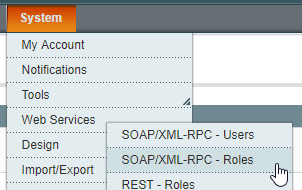
- Go to the menu item 'SOAP/XML-RPC – Roles' under 'System' and 'Webservices'
- Click on 'Add new role' on the far right, almost at the top
- Give the role a name – e.g. netradar.io
- Click on 'Role Resources' on the far left

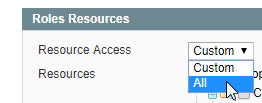
- Select 'All' next to 'Resources Access'
- Click on 'Save Role' on the far right, almost at the top

- Go to the menu item 'SOAP/XML-RPC – Users' under 'System' and 'Webservices'

- Click on 'Add new user' on the far right, almost at the top

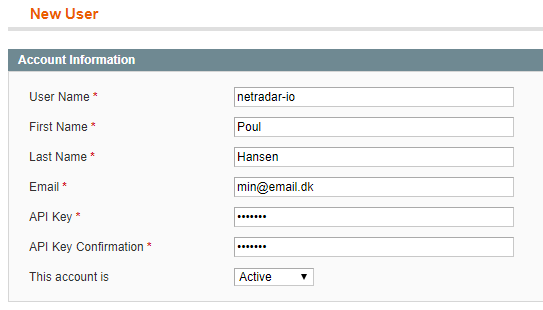
- Fill out the form. If you already have a user with your email address, you can simply fill in with one that does not exist.
- Click on 'User Role' on the far left and tick the role you created a little earlier

- Click on 'Save User' at the top right
- Now go back to the integration setup page in Netradar.io and insert your user information
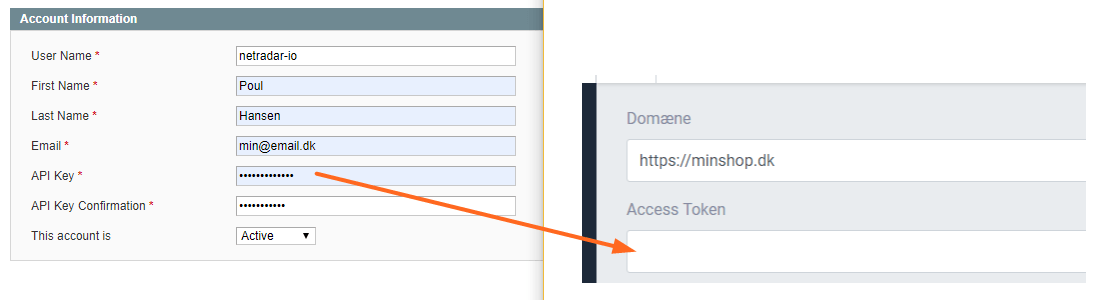
- What you wrote as API key for your user in Magento, you must now write in the field 'Access token' in Netradar.io
- Then enter your fields for barcode (also called GTIN/EAN/barcode) and brand/brand. You can see the name of these in your Magento via 'Catalog' – 'Attributes' and under that 'Manage Attributes'

- If your bar code field is called gtin and your brands are called brand, then it will look like this:

- Click on the green button 'Save settings'
Should you encounter any errors or require assistance, please contact us at support@netradar.io or call +45 77 34 34 34. Your products are now being processed for price monitoring. The duration depends on the quantity, with an average of approximately 5 minutes for every 1000 products.