
Support
Products with variants

Price monitoring of variants – collectively or individually?
Monitoring of products with variants is handled differently depending on how you have connected your webshop to NetRadar.io
If you use XML product feed or CSV/spreadsheet import , then it is line by line that products are read in from these.
If you use one of the built-in integrations for your webshop platform , it depends on what your platform supports in terms of variants.
These platforms support the possibility of working with variants both collectively and individually:
- Magento 2
- WooCommerce
- Shopify
- Smart Web
- Scanned
- Wannafind
- Prestashop
- Thirtybees
- Golden Planet
- DanDomain
As a starting point, products with variants are monitored together with the same price for all variants.
You must therefore let the monitoring remain unified if you want to have the same price for all your variants or do not want to spend time monitoring and pricing each individual variant. We retrieve the barcode from the first variant from your platform and use this for matching + searching for competitors (in addition, as always, also matching + searching based on text and image analysis).
Split product up in each individual variant – and maybe collect again
If your integration supports the option, then from each product in the list you will see this option to split up to see each individual variant:

Click on it to split up, after which each individual variant is downloaded from your webshop. Wait a short moment, reload the page with products and you now have every single variant. You can then activate the variants that you want to monitor.
Should you regret the split, you can go back to the complete product by clicking on the icon with arrows inwards next to one of the variants.

Then assembled into a product again (you also have to start searching/matching again in this case).
Get different prices per variant on the same product page

When you have to choose a variant for the final price to be displayed, you have to tell the NetRadar.io robot which one to choose.
First, the current competitor must be added to the product – via automatically found or manually added . If you add manually, wait 5-10 minutes after the link has been inserted before you check further about variants (options on the page must be downloaded first).
From the product list, you unfold so that you can see all competitors for your product.
When competitors are found who are already prepared for variants, they will await your specification of variant. Such are displayed under "currently without price or sold out at competitor" - such as, for example. here

Click on "Show now" to see the list with all current ones.
Regardless of whether it is competitors already listed with price or it is under "currently without price or sold out at competitor", you set up variant selection by clicking on the + icon next to the competitor where the variant must be specified:

RED COLOUR BUTTON:

Sometimes after reviewing your report we determine that variants are not supported for this competitor domain - in such case you will see the red button.
There can be various reasons why it is technically not possible to automatically retrieve prices for variants from a page. When it has already been established for a page, you will see this message as well:

If the page you want to retrieve variant prices from is not yet set up for fetching, then you will see this message:

Click on "Yes, please check" and our support will be notified to investigate the possibility of adding it to the page. When it is settled, you will be notified by e-mail.
YELLOW COLOUR BUTTON:


Yellow button means that reported competitor received variations that are ready for specifying - in this case you have to choose the needed one from the variants we added.
GREEN COLOUR BUTTON:
When a page is already ready to download a selection of variants, you will see a drop-down menu where you can select the variants that can be seen on the page - for example like this:
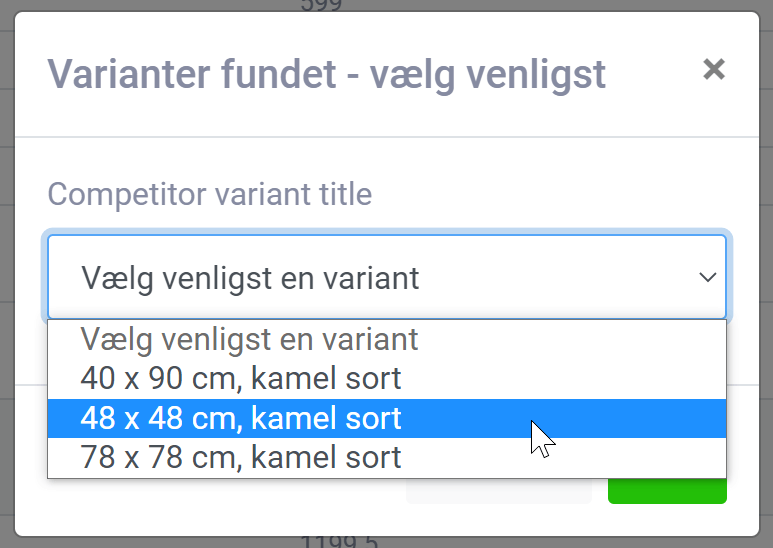
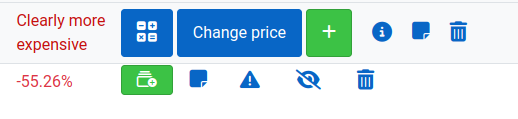
After you choose the variant you need from the dropdown - you get a green button which means the variation was successfully specified and since now will be monitored.
The price will then be updated/retrieved similarly to products that do not have variants.