
Support
Export data to CSV and Excel
With the export functions, you can retrieve data about your products and market prices for use in analysis and further processing in your webshop, financial system, spreadsheets, etc. You can find it all in the menu on the left here:

What data can be exported?
You can export this data:
- Basic data about own products (SKU, title, price, etc.)
- Latest price from everyone in the market that you monitor
- All prices found in the market, including those that you have not approved for use
- Proposal for a new price for your products based on repricing rules
Export to CSV file – format that can be loaded by many systems
You can export all types of export to a CSV file by clicking this button next to the current one:

This always has current/latest data. In other words, it is created when you click the button - after a while it is downloaded to your computer.
The advantage is fresh data. The disadvantage may be that you subsequently have to manually import it into where you want to use data.
Export to Excel file
Here you get an .xlsx file ready to open directly in Excel, so you don't have to spend time on CSV import.
It requires some extra machine power to create Excel files. That's why we build them in advance and make them ready for download until they need it.
For the data type you want in Excel format, you start by activating it by clicking 'Activate Excel URL'

While the first Excel is being created, you will see this and cannot yet download the file - it is being created for you:

It takes approximately 1 minute for every 10,000 lines/prices in your export. Come back a little later or reload the page a few times - when you see the date and time on the button, it's ready to download by clicking it:

So that you don't have to wait that long every time you need to use an Excel, we create a new Excel for you every few hours. Should you need absolutely the latest data, you can click on the "Start Excel update" button and a new file will be created for you. Reload the page and check the time to see when it is ready.
You can also create a shortcut in your browser or elsewhere with the web address shown in the box - then Excel with the latest update will be downloaded immediately:

If it takes a long time until you probably need to use an Excel export again, then "save power" and turn it off in the meantime

Spreadsheet that automatically updates with new data: Excel
To use this method, you must enable CSV URL

When the button for CSV shows the date and time (reload the page to check), the web address is ready for use with data

Highlight and copy the web address. Now go to Excel and open a new/empty project folder or an existing one where you want your NetRadar.io data.
Click on 'Data' and below 'From the Internet'
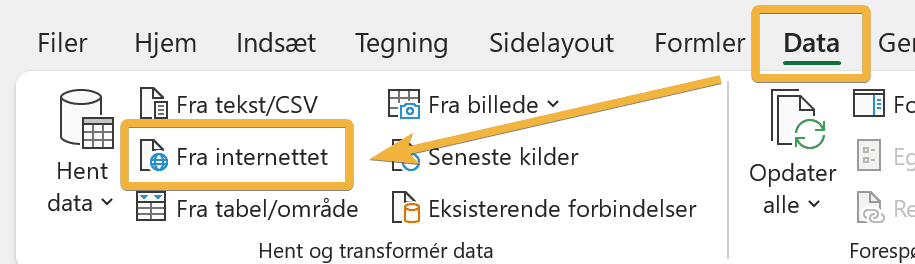
Insert the web address from your Netradar.io and click OK

Then click on 'Connect'

Next, check that the data examples look correct. Then click 'Load'

Data should now be imported into your excel sheet.
You can now update with the latest data by simply clicking Update in Excel

An option is also to activate automatic updating, for example when you open the sheet:

The first time you open the file you may get this warning - click 'Enable Content' and save the project folder/file before closing it again

Data in the CSV web address is continuously updated. You can see the time of the latest update in the button for CSV download – if you want more fresh data, you can click on 'Start CSV update'

You can create new sheets in your Excel folder, which then retrieve data from columns in the sheet with data with CSV or add new columns in the sheet that retrieve data.
It has now become much easier to work with fresh data in Excel :)
Spreadsheets that automatically update with new data: Google Sheets
Similar to Excel as mentioned above, you can download data directly into Google Sheets. But note:
NOTEGOOGLE SHEET'S IMPORT DATA FUNCTION CANNOT RETRIEVE LARGE AMOUNTS OF DATA.
To use this method, you must enable CSV URL
When the button for CSV shows the date and time (reload the page to check), the web address is ready for use with data

Highlight and copy the web address. Now go to Google sheets and insert the import data formula like this
=IMPORTDATA("webaddress")
For example like this one
=IMPORTDATA("https://app.netradar.io/integration/product-feed/10acea09-ce39-4ba0.csv")
If necessary, also see Google's instructions for the import data formula here
Export calculated prices from repricing
In addition to data about products and the market, you can also retrieve prices calculated in repricing.
That is, prices that are not updated automatically via integration, but are calculated as proposals. Here from setting up a repricing rule where it is selected

With the same methods as mentioned above with CSV and Excel, you can retrieve the calculated prices both for CSV file, Excel or web address.