
Remove products
Review the products that are no longer in your webshop and delete them – and how to get products back if you deleted too many.
Not all webshop platforms are equally good at sending a reliable signal via the integration when products are deleted.
That is why we don't delete products automatically. Instead, we create a list of products that are detected as no longer being in your webshop. You can then review the list and delete all or selected products.
If you delete a product that turns out to still be active, don't worry – you can always get it back into your NetRadar.io account.
See the list of products to delete
-
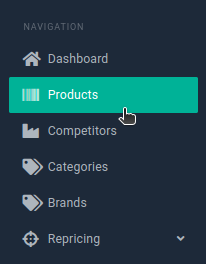
Go to 'Products' in the menu on the left.
-
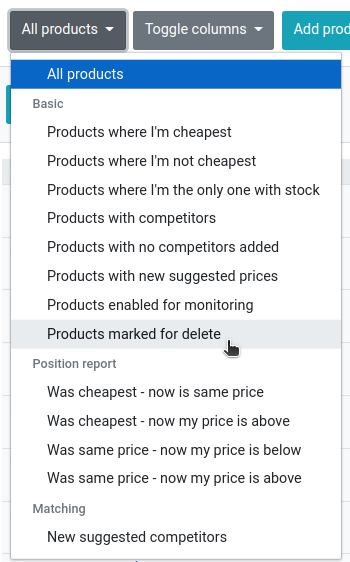
Click the 'All products' drop-down and select 'Products marked for delete'.
Check whether the products should be deleted
If, for example, products have been given a new ID in your webshop, active products may appear in this list – especially if the web address is still the same.
A good way to check is to switch the list back to 'All products' and filter by the product title. See how to filter here.
Select all or some products and delete them
-
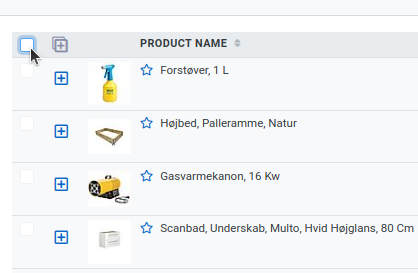
Select individual products by ticking the checkbox on the far left of each product – or select all of them by ticking the checkbox at the top of the list:
-
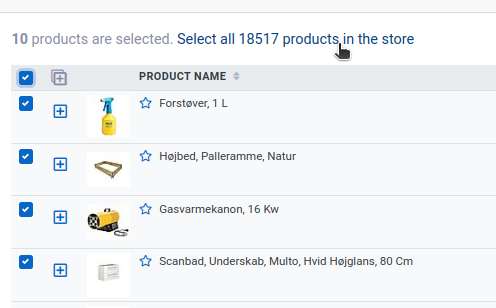
Then click the link 'Select all X products in the store':
-
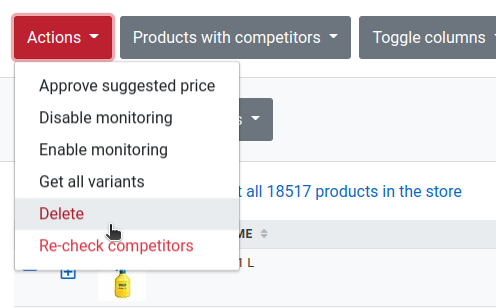
Now open 'Actions' at the top and choose 'Delete':
If you deleted too many
- If you created products via CSV import: Run a new import with your products.
- If you use integration via an XML product feed: The products are retrieved automatically at the next update (typically every 6 hours).
- If you use a built-in platform integration: Wait for the next update, or retrieve all products right away as described below.
To retrieve all products from your platform integration now:
-
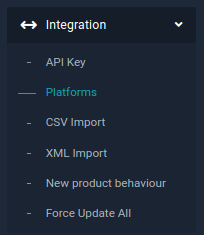
Go to 'Integration' → 'Platforms'.
-
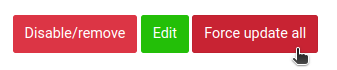
Click 'Force update all'.
Depending on the total number of products, it may take a while before all of them have been retrieved. You then need to enable the relevant products for monitoring again.