
Export data to CSV and Excel
Export product and market data from NetRadar.io as CSV or Excel files, or connect Excel and Google Sheets to a web address that updates automatically.
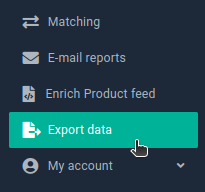
With the export functions, you can retrieve data about your products and market prices for analysis and further processing in your webshop, financial system, spreadsheets etc. You will find it all under 'Export data' in the menu on the left:
What data can be exported?
You can export:
- Basic data about your own products (SKU, title, price etc.)
- The latest prices from all the competitors in the market that you monitor
- All prices found in the market, including those you have not approved for use
- Suggested new prices for your products based on your repricing rules
Export to a CSV file – a format many systems can read
You can export every type of data to a CSV file by clicking the 'CSV(current data)' button next to it:
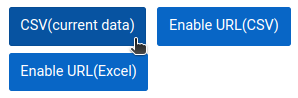
The file always contains current data – it is generated when you click the button and is downloaded to your computer shortly after.
The advantage is fresh data. The disadvantage may be that you then have to import the file manually wherever you want to use the data.
Export to an Excel file
Here you get an .xlsx file that opens directly in Excel, so you don't have to spend time importing a CSV file.
Creating Excel files requires extra computing power. That is why we build them in advance and keep them ready for download until you need them.
-
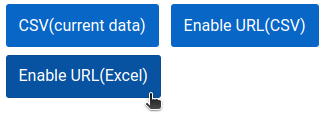
For the type of data you want in Excel format, start by clicking 'Enable URL(Excel)'.
-
While the first Excel file is being created, you will see this – you cannot download the file yet, as it is being created for you:

-
It takes about 1 minute per 10,000 lines/prices in your export. Come back a little later or reload the page a few times. When the button shows a date and time, the file is ready – click the button to download it:

So you don't have to wait every time you need an Excel file, we create a new one for you every few hours. If you need the very latest data, click 'Initiate Excel update' and a new file will be created. Reload the page and check the time to see when it is ready.
You can also create a shortcut in your browser – or elsewhere – to the web address shown in the box. The Excel file with the latest update is then downloaded immediately:

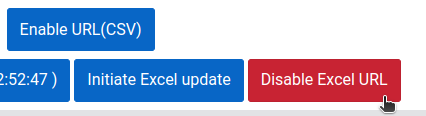
If it will be a while before you need an Excel export again, "save power" and switch it off in the meantime with 'Disable Excel URL':
Spreadsheet that updates automatically: Excel
-
To use this method, click 'Enable URL(CSV)':
-
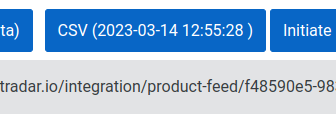
When the CSV button shows a date and time (reload the page to check), the web address is ready to deliver data:
-
Select and copy the web address. Now open Excel with a new, empty workbook – or an existing one where you want your NetRadar.io data.
-
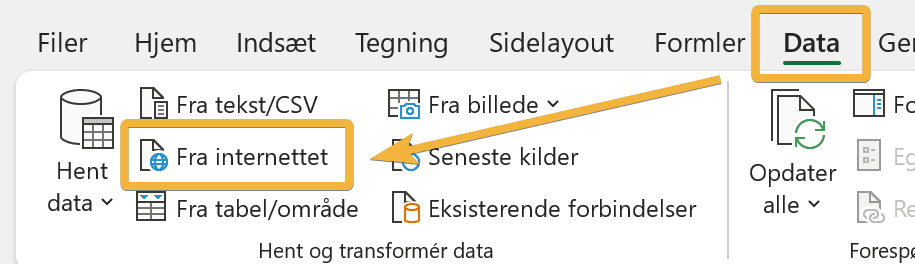
Click 'Data' and then 'From Web' (in Danish Excel: 'Fra internettet'):
-
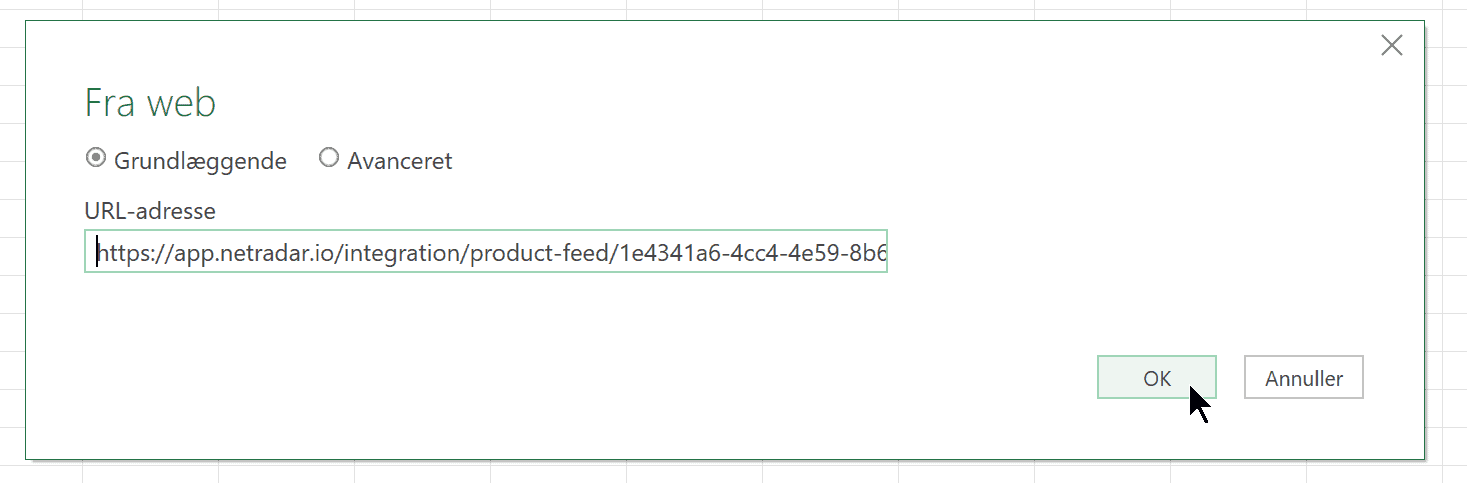
Paste the web address from NetRadar.io and click 'OK':
-
Then click 'Connect':
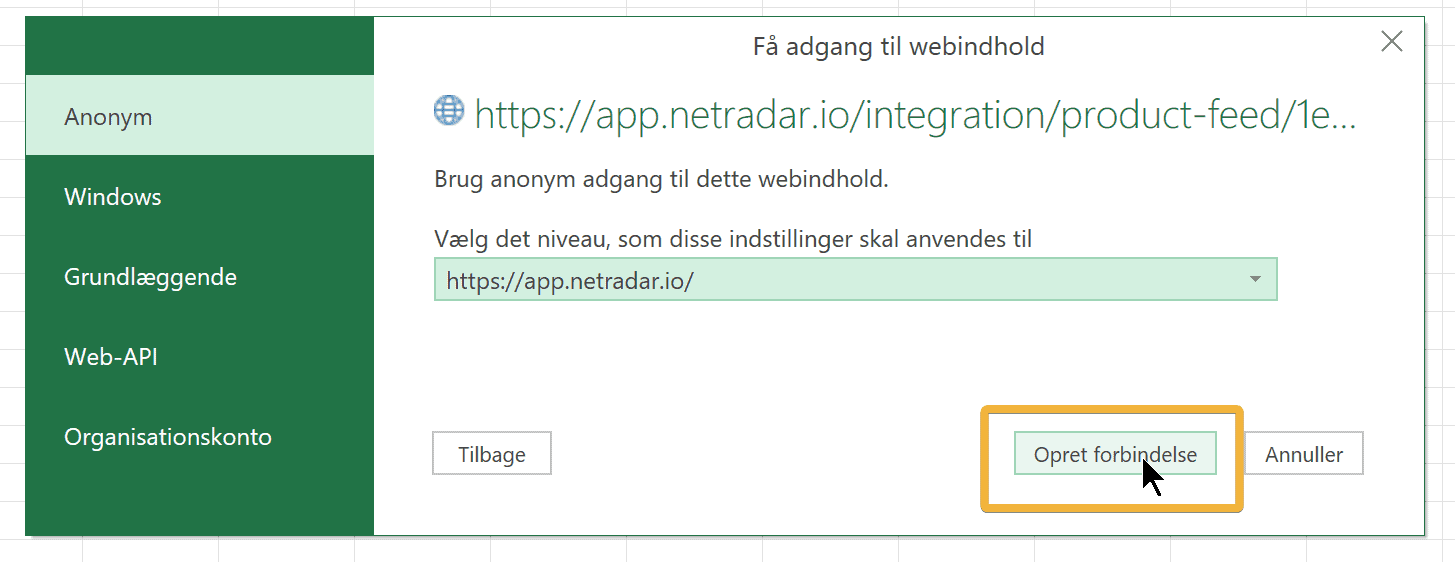
-
Check that the data preview looks correct, then click 'Load':
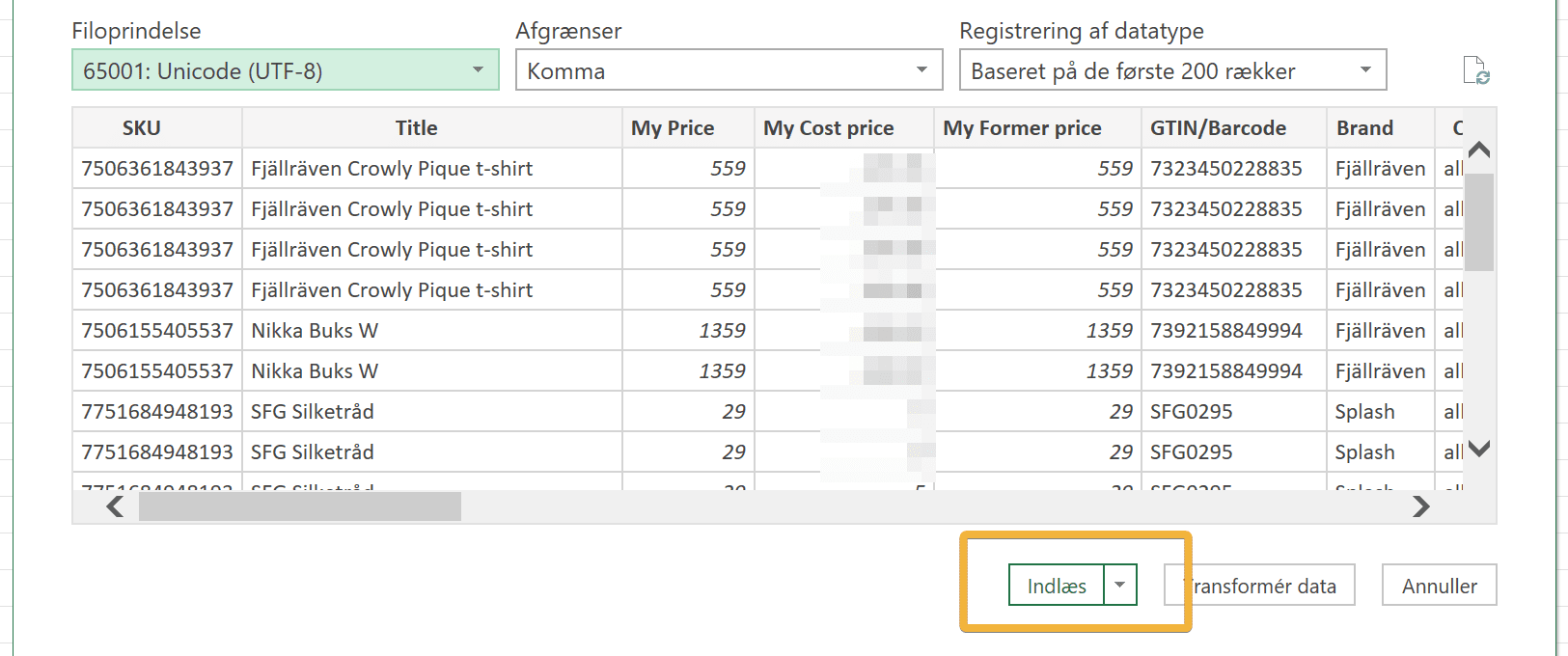
The data is now imported into your Excel sheet.
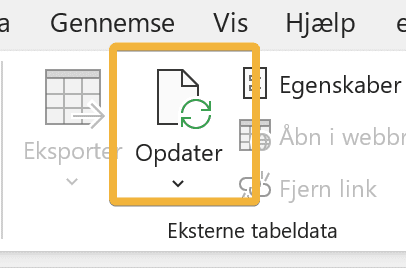
You can update to the latest data at any time by clicking 'Refresh' in Excel:
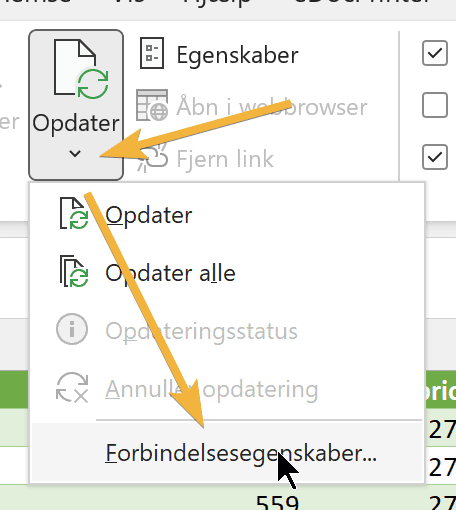
You can also enable automatic refresh – for example whenever you open the workbook – under 'Refresh' → 'Connection Properties':
The first time you open the file, you may see this security warning – click 'Enable Content' and save the workbook before closing it again:

The data at the CSV web address is updated continuously. You can see the time of the latest update on the CSV download button – if you want fresher data, click 'Start CSV update':

You can create new sheets in your workbook that pull data from the columns in the sheet with the CSV data, or add new columns to that sheet that use the data.
Working with fresh data in Excel has now become much easier.
Spreadsheet that updates automatically: Google Sheets
Just like with Excel above, you can load data directly into Google Sheets.
Note: The IMPORTDATA function in Google Sheets cannot retrieve large amounts of data.
-
To use this method, click 'Enable URL(CSV)':
-
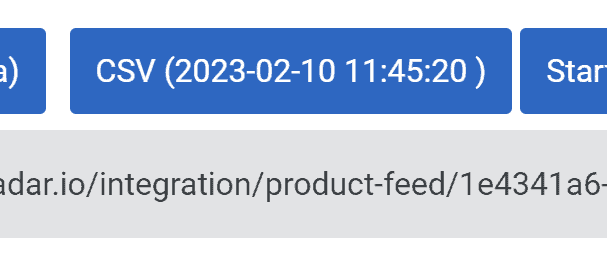
When the CSV button shows a date and time (reload the page to check), the web address is ready to deliver data:
-
Select and copy the web address. Now go to Google Sheets and insert the IMPORTDATA formula like this:
=IMPORTDATA("webaddress")For example:
=IMPORTDATA("https://app.netradar.io/integration/product-feed/10acea09-ce39-4ba0.csv")
If needed, see Google's help for the IMPORTDATA function.
Export calculated prices from repricing
In addition to data about your products and the market, you can also export prices calculated by repricing.
These are prices that are not updated automatically via the integration but are calculated as suggestions. You choose this when you set up a repricing rule:
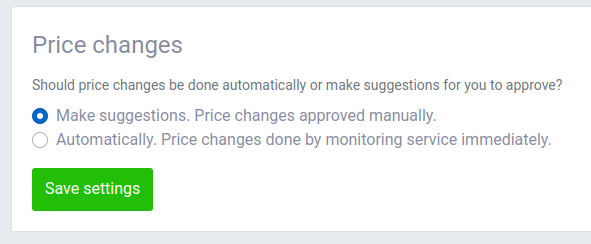
Using the same methods as described above, you can export the calculated prices as a CSV file, an Excel file or via a web address.